
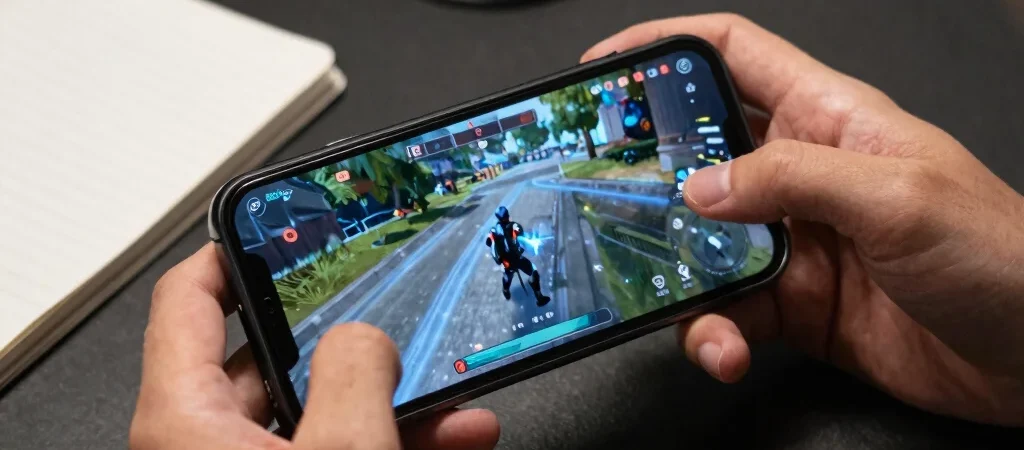
You install a mobile game update, launch the same match, and suddenly the phone feels warmer or the action less smooth. That doesn’t automatically mean the update broke performance: settings, background downloads, and network conditions can change the experience as well. Compare one thing at a time before changing every option.
Check What Actually Changed
Read the update notes in Google Play or the Apple App Store and look for changes to graphics, matchmaking, device support, or known issues. Then check the game’s own settings for options that may have reset, such as frame rate, resolution, or visual quality. A higher frame-rate setting can make motion feel more responsive, but it can also increase power use and heat.
Repeat a short section of gameplay under similar conditions: same area, similar brightness, and a stable connection if the game relies on one. If menus feel smooth but online matches lag, that points to a different problem than frame stutter during offline play. Note the device model, operating system version, and when the issue appears before reporting it.
Separate Heat From Network
A phone that warms during a long session may reduce performance to manage heat, especially if it is charging or running other demanding apps. Let it cool, close unnecessary background activity, and test again without a charging cable. Avoid treating one brief session as a definitive benchmark; room temperature and case design can affect what you notice.
For online lag, switch between Wi-Fi and mobile data only where your plan and signal make that practical, then compare the result. A weak connection can disrupt multiplayer play even when the game renders smoothly. Conversely, a steady connection won’t fix stuttering caused by graphics settings or device load.
Make One Change at a Time
Lower one demanding graphics option, replay the same section, and see whether the symptom changes before adjusting anything else. If the problem persists across settings, check the developer’s support notes and recent player reports for your device and platform. The most useful update report is specific: what changed, where it happens, and whether it affects performance, battery life, or connectivity.

- LARGE SCREEN VIEWING: Enlarges your smartphone screen by approximately 2–4X for easier viewing of movies, short videos, …
- PORTABLE & FOLDABLE DESIGN: The foldable screen stand takes up minimal space on your desk and makes the phone screen mag…
- CLEAR ACRYLIC LENS: Features a transparent acrylic magnifying lens that enlarges your phone display without batteries or…
- LARGE SCREEN VIEWING:Enlarges your smartphone screen by approximately 2–4X for easier viewing of movies, short videos, g…
- PORTABLE & FOLDABLE DESIGN: The foldable screen stand takes up minimal space on your desk and makes the phone screen mag…
- CLEAR ACRYLIC LENS: Features a transparent acrylic magnifying lens that enlarges your phone display without batteries or…
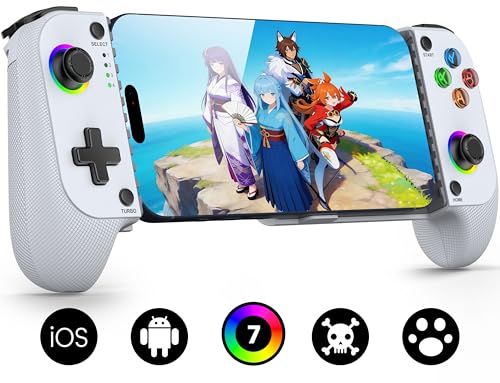
- Bluetooth Controller for iPhone/ iPhone Duo & Android: Mocagen mobile gaming controller Compatible with all iPhone model…
- Play Most Controller-Compatible Games: This iPhone game controller supports cloud gaming (e.g., Xb*x Game Pass, GeForce …
- 5M-Cycle Lifespan & Zero Drift: MC1 mobile gaming controller features a Hall-effect joystick with a 5M cycle lifespan, 2…